To create a Hyperview shortcut that is usable over the network, you can run the Hyperview installer and directly choose a network location, which will provide a valid "Run Hyperview" shortcut in your destination folder. Alternatively, you can follow the instructions below.
Creating a shortcut
To create a shortcut that is usable over the network:
- Browse your computer, through Network (or, on older versions of Windows, My Network Places). This can be accessed through Windows Explorer. If you already know the name of the computer you can instead type
\\[Computername]directly in Windows Explorer's address bar. Once you have located your computer on the network, open theDBDOC\Hyperview\Programsfolder (or wherever you have a shared version of Hyperview installed). The screen you see at this point should look similar to the screenshot below. - To create the shortcut, right-click hyperview.exe and select Create Shortcut.
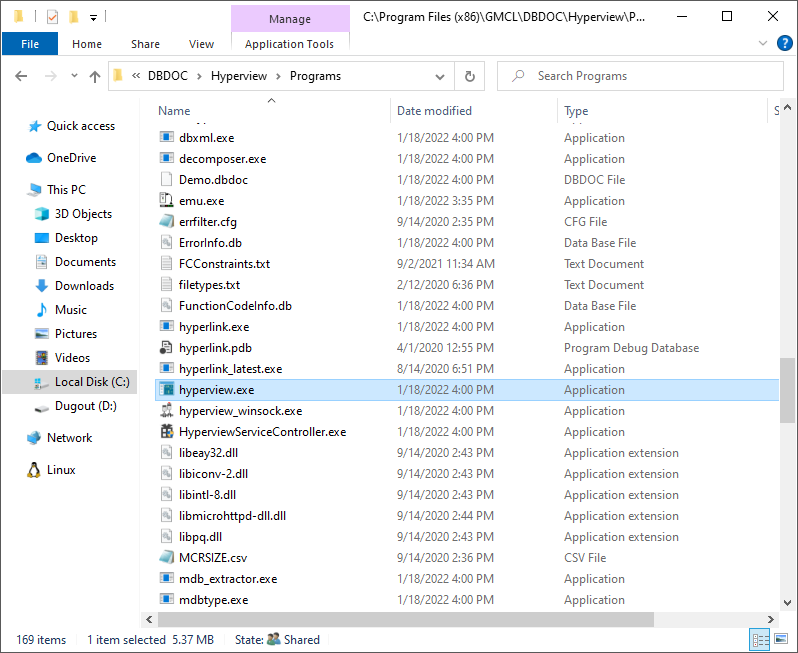
The shortcut that is created will be called something similar to hyperview.exe - Shortcut. To rename it to something that identifies it as DBDOC, right-click it and choose Rename.
Verifying the shortcut
Next, verify that the shortcut was created properly. To do this right-click on the shortcut and choose Properties. The two fields we want to take a look at are Target and Start-in.
- The Target: path should look similar to the following:
”\\Computer Name\DBDOC\Hyperview\Programs\hyperview.exe” - Your Start in: directory should look similar to the following:
”\\Computer Name\DBDOC\Hyperview\Programs\”
If your path name is very long, you may be unable to enter it. If this happens, you may be able to use short names. Find the short names, if they exist, by opening a command prompt window (press the Windows key and typing cmd) and using the dir /x command.
For example, if your Start in: directory was "\\Computer Name\ShareName\A folder with an extremely long name\Another folder with a long name\DBDOC\Hyperview\Programs\", you could find the short names by:
>dir \\Computer Name\ShareName /x

...

>dir \\Computer Name\ShareName\A folder with an extremely long name /x

...
et cetera
And then finally shorten it to, perhaps, "\\Computer Name\ShareName\Afolde~1\Anothe~1\DBDOC\Hyperview\Programs\".
Specifying the project file
Once you have verified that the proper paths are in place, you need to tell it where to locate and open your project file from.
When the Hyperview kit was installed on your computer, a folder was created to hold project files. A path to that folder needs to be added after the target so Hyperview knows where to find project files. The easiest way to specify this folder is to cut and paste the path from the Start in: text box of the Shortcut Properties dialog.
- To copy the path in the Start in: text box, select it and press Ctrl+C.
- The next step is to place the cursor after the hyperview.exe in the Target: text box and insert a space and two quotations.
- Now insert the cursor between the quotation marks and press Ctrl+V. This will insert something like the following path:
”\\Loki\DBDOC\Hyperview\Programs” - The Programs folder needs to be deleted from the end of the path you just pasted.
- After Programs is deleted, add
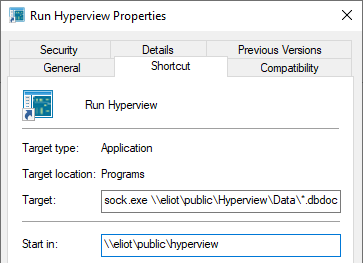
data\*.m14ordata\*.dbdocafter\Hyperview.
 Note: Both
 *.m14 and *.dbdoc tell Hyperview to open the most recent project file in this data folder, regardless of whether its file type is dbdoc or M14. As long as there is a wildcard character ("*") in your specification, .dbdoc and .M14 are completely interchangable. You do not have to change your old shortcuts.
When you are finished your shortcut should look like this:
Distributing the shortcut
This shortcut can now be copied to the desktop of any user who needs to be able to access your latest project file.
See also
- Exiting Hyperview
- Launching Hyperview from the command line
- Launching a new copy of Hyperview
- Learning about this version of Hyperview
- Launching Hyperview from a batch file
- Running Hyperview
- Launching Hyperview when a Hyperview Browser is already active