On the Search Menu, click Database Search (shortcut Alt+D)
Contents
Overview of database search
The Database Search menu item searches for specified terms in the Tag and Trend databases.
To use this utility press the  button and click on the Database Search tab or select Database Search from the menu. You can specify a tag index value, trend index value, tag name (or partial tag name), Loop, PCU, Module, and Block numbers or any combination of the above. The Miscellaneous text field allows you to search for descriptions, units, alarm groups or any other text that appears in the database. Clicking the Search button will start an intelligent search for the terms in the Tag and Trend databases.
When you search for tag or trend information, all documents containing the information are listed in a Search Results dialog box (see Viewing search results). Within each document, all occurrences are highlighted to stand out. Use the Next Highlight  button and the Previous Highlight
  button on the tool bar to step through all of the search hits in any document.
When no results are found
If Hyperview was not able to find anything that matched the specified search criteria, then it will bring up the following dialog box to let you know that no search hits were found.
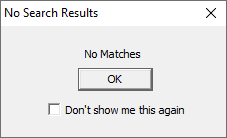
If you do not wish to see this dialog box each time an unsuccessful search was performed then check the Don't show me this again option before click OK to close the dialog. To reset this option so that the message appears again, you can go to the View page of the Options and check the Reset to show all suppressed dialogs box.
Viewing search results
When the search is complete, and one or more topics have been located, a search results dialog box appears (see Viewing search results).
Search details
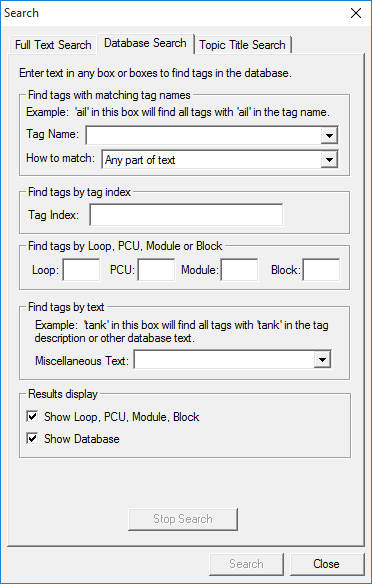
- Tag Name: Specifying a tagname or partial tag name will search the Tag, Trend and PI databases for that tag. The tagname is wildcarded according to the type of match specified.
- Match: Select the type of text matching to occur in the search from: exact match, start of text, end of text, any part of text.
- Tag Index: Specifying a tag index will search the Tag databases for tags with that index (eg. TD_SERVER1_1)
- Trend Index: Specifying a trend index will search the Trend databases for trends with that index.
- Loop, PCU, Module, Block: Specifying any combination of Loop, PCU, Module, and Block will search the Tag and Trend databases for matching tags and trends.
- Miscellaneous Text: Search for text in the database, either alone or in combination with any of the other search specification boxes. If you enter multiple words in the Miscellaneous Text field then Hyperview will search for the entire phrase in the database, not each individual word. If you are looking for individual words, simply place quotes around each word.
- Show Loop, PCU, Module, Block columns: Displays the LPMB of each search result in the search results window.
- Show Database: Displays the corresponding database where the tag was found in the search results window.
- Maximum Number of Search Hits to Display: Limits the number of search results to display.
- Stop Search button: Cancels the current search, without closing the dialog box.
- Search button: Starts the search.
- Cancel button: Closes the dialog box without doing a search.
See also
- Clearing Search Hits
- Highlighting search hits
- Search For Selection
- Searching document titles for a topic
- Searching the System and Navigating Search Results
- Searching the system for a word or phrase
- Viewing next hit in a search result topic
- Viewing previous hit in a search result topic
- Viewing previous search result in a full text or database search
- Viewing search results
- Viewing the next search result in a full text or database search