On the Tools menu, click Project Options and navigate to the Processing Options tab. Click on "Modify Scripts and Settings"
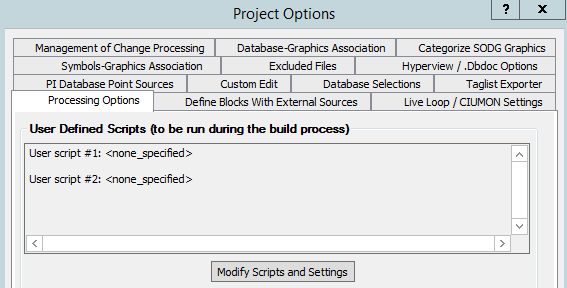
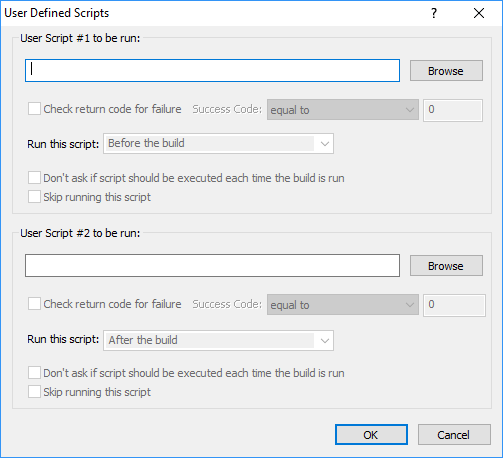
User Defined Scripts
This allows you to run a script such as a Visual Basic script or batch file before, during and/or after the build process.
- Create scripts that perform the actions that you require.
- Identify the location of the User Script #1 to be run and/or User Script #2 to be run (either by typing in the edit box or using the Browse button to find the file), including the full path to the file and the file extension, for example
C:\scripts\myscript.vbs. - For each script, check the Check return code for failure box if successful execution of your script is critical for a successful build, and enter the Success Code expected.
- If the user script's return code does not match the Success Code you entered in the Success Code field, BuildPlus will notify you and ask whether to continue the build. If you don't respond within five minutes, the build will stop.
- If an after-build script's return code does not match the Success Code you specified for it, Hyperview will not be launched.
- Choose when the script should be run from the three options listed for Run this script:
- Before the build (formerly "Script to be run before build begins" pre-script)
- Middle of the build - before Hyperlink run With this timing the script will run after the config file is generated and database reprocessing is completed, but before Management of Change processing.
- After the build (formerly "Script to be run after build ends" post-script)
- Check the Don't Ask box if you don't wish to be asked whether the script should be run.
- When BuildPlus asks whether to run a script, it offers to save your answer. If you do this, you can make BuildPlus ask again by clearing the Don't Ask checkboxes here.
- Check the Skip button for the script to not be run.
- If the Don't Ask checkbox is not selected, BuildPlus will ask whether to run the script. (During the build, if you don't respond within five minutes, the script will run.)
For example, you might run a script to copy over some specific files before a build begins, and then run another script to delete them when the build completes.
See also