The list of blocks you are monitoring in your watch window group appears to the right of the plot. You can add blocks to a Watch Window group in many different ways:
- On any CAD, CLD or graphic (or other document including text documents), right click on any source or output hotspot, point to Add this Block to the Watch Window, then click New group or a group name. The block will be added with the default options.
- On any CAD or CLD, right-click on a function block, and choose Add Standard Inputs and Outputs to Watch Window. The "important" inputs and outputs for that function block will all be added at once (see Creating a group automatically from a Function Block).
- Right click on any live loop annotation, point to Add to Watch Window, then click New group or a group name. The block will be added using the options set for the live loop annotation.
- In the Watch Window, click the Add Block button and define your data point.
- In Watch Window Block menu, click Add and define your data point.
- Double-click an empty space in the list of blocks at the right side of the Watch Window, then define your data point.
- Right click in the list of blocks, click Add Block, and define your data point.
Important: Read about Managing Watch Window data files and memory use.
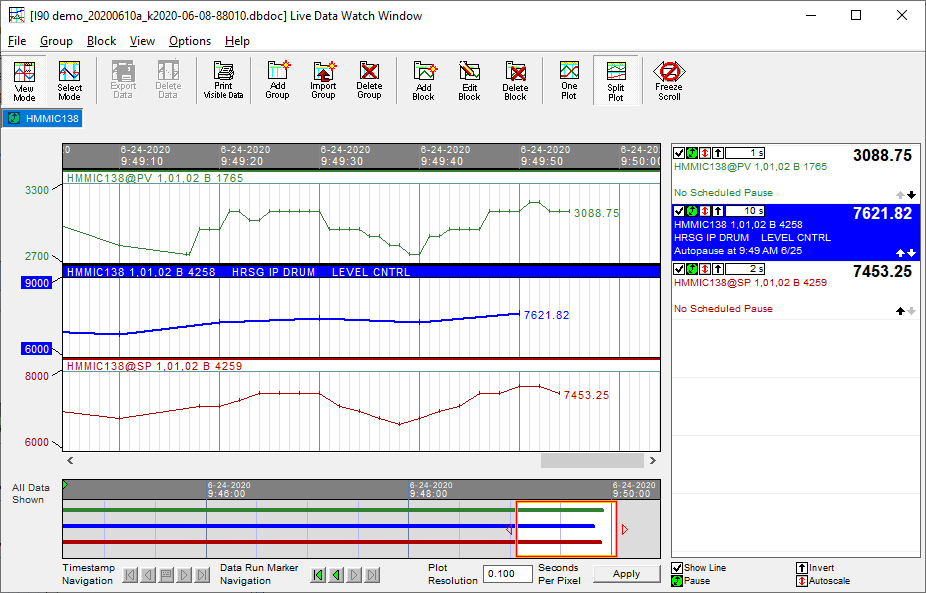
The Watch Window will look something like this after some data collects:
See also
- Editing a block in the Watch Window
- Deleting a block from the Watch Window
- Saving the current plot vertical range as the custom range
- Showing/Hiding a plot line in the Watch Window
- Pausing data collection for a block in the Watch Window
- Automatically generating the best range for plots in the Watch Window
- Inverting the y-axis of plots in the Watch Window
- Adding a live loop annotation to the watch window
- Understanding when data points are connected with lines in trend plots
- Changing plot line colors in the Watch Window
- Changing the update interval for blocks and groups in the Watch Window
- Managing Blocks in the Watch Window
- Setting the update interval for a block in the Watch Window
- Rearranging blocks in the Watch Window