By clicking the Options Menu, the Properties for Hyperview window will open. Click the Print Settings tab.
Use this window to specify the default settings that will be used whenever you print a document in Hyperview.
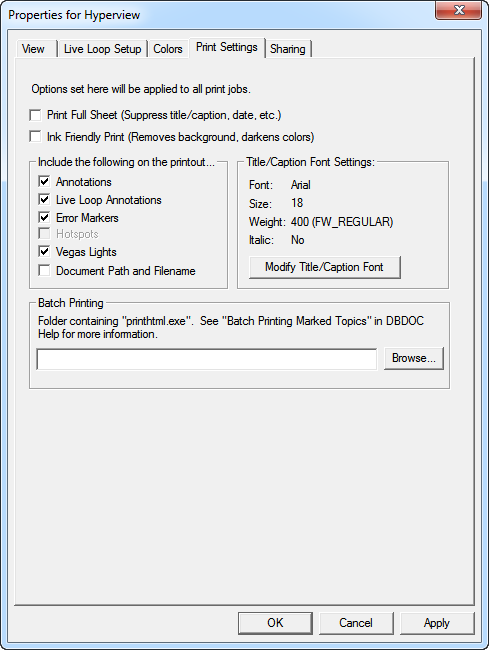
- Print Full Sheet: Suppresses title, caption, date etc.
- Ink Friendly Print: Check this option to have the colors of the printout adjusted to reduce ink usage.
- Print Zoomed Out: Check this option to have documents appear fully zoomed out on your printout (regardless of the zoom level used when marking each document for printing).
- Include the following on the print: Choose from the options listed what you want to have appear on your printed document.
- Annotations: Check this option if you want the annotations that you made on your drawings or graphics to show up on your printout.
- Live Loop Annotations: Check this option if you want the live loop annotations that you made on your drawings or graphics to show up on your printout.
- Error Markers: Check this option to print error markers. They do not print by default.
- Vegas Lights: Displays the current vegas lights highlight on the printout.
- Document Path and File Name: Check this option to add the full document path and file name to the printout.
- Modify Title/Caption Font: Change the type and size of font used for printing the caption.
- Folder containing "printhtml.exe": Set a location for a PrintHTML executable (see Batch printing marked topics).
See also
- Modifying page layout settings for printing
- Printing the current topic
- Printing with initialized settings (Fast Print)
- Printing marked topics
- Marking a topic or group of topics for printing
- Printing documents with text annotations on them
- Marking the current topic for printing
- Printing Topics in Hyperview
- Batch printing marked topics