On the File Menu, click Mark Topic For Printing.... This displays the Mark Topic for Printing dialog.
Overview
The Mark for Print feature allows you to "mark" or select a topic or group of topics for printing. The marked topics are stored in the Marked Topics list shown in the Mark Topic for Printing dialog. Once topics are in the list, they can be printed en masse. This feature allows you to easily collect topics for printing as you are browsing, and also to print all (or some) topics of a certain type, for example CAD or CLD sheets, BATCH files, or topics with annotations, without having to view and select each topic individually.
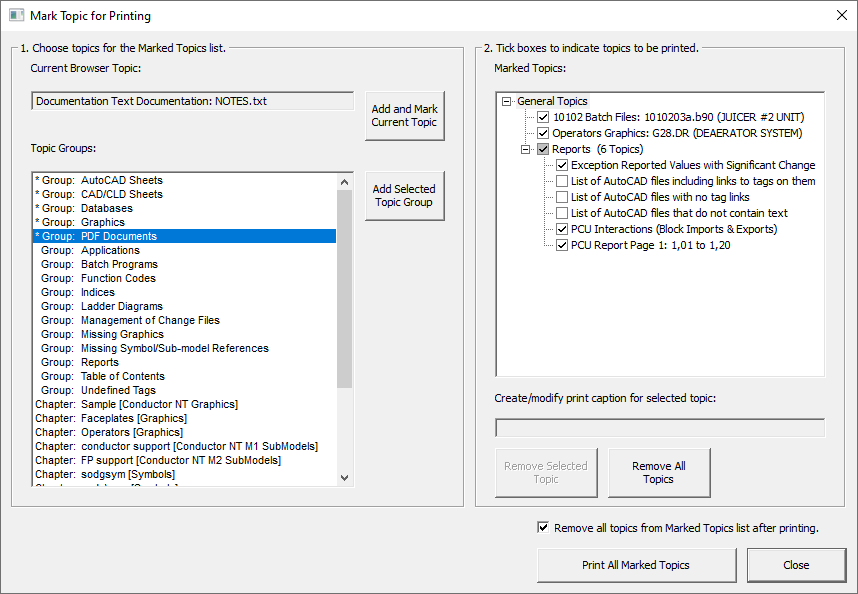
Marking the current topic for printing
There are three ways to mark the current topic for printing:
- On the File menu, click Mark Topic for Printing. In the dialog box that opens, click Add and Mark Current Topic.
- Right-click the document, then click Mark This Topic for Printing on the context menu.
- Right-click a table of contents link to the document, and select the option to mark the topic for printing.
Marking an entire group of topics for printing
- On the File menu, click Mark Topic for Printing.
- In the Topic Groups list, select the group.
- Click Add Selected Topic Group.
- In the Marked Topics list, select the check box for the newly added group.
Marking some topics from a group for printing
- On the File menu, click Mark Topic for Printing.
- In the Topic Groups list, select the group.
- Click Add Selected Topic Group.
- In the Marked Topics list, expand the newly added group. Select the check boxes for the topics you wish to print.
Removing topics or groups of topics from the marked topics list
- On the File menu, click Mark Topic for Printing.
- In the Marked Topics list, select the topic or group to remove.
- Click Remove Selected Topic.
Batch printing the marked topics
Note that unless you use the recommended printers to print to PDF, you will encounter a confirmation dialog for each marked topic you are printing. Please see Batch printing marked topics for how to avoid this.
Other options
In the Mark Topic for Printing dialog,
- Remove all topics from Marked Topics list after printing: General topics shown in the Marked Topics list are cleared when the dialog box is closed if they have been printed.
- Create/modify print caption for selected topic: Sets a caption for the selected topic. Use this to include comments about the topic; the drawing title is printed automatically above the caption.
See also
- Modifying page layout settings for printing
- Printing the current topic
- Printing with initialized settings (Fast Print)
- Printing marked topics
- Printing documents with text annotations on them
- Changing print settings
- Marking the current topic for printing
- Printing Topics in Hyperview
- Batch printing marked topics