This section contains information about what you see during a build.
For more information about the BuildPlus windows, see Customizing the BuildPlus user interface
Messages that may appear during a build
Messages written in red in the BuildPlus processing window indicate possible errors. This could include:
- a needed file was missing, could not be opened, or could not be read
- problems fetching something from a GUI option
- an invalid path
- unable to create a given folder
- dialog time-out
- an external program has failed in its run (for example, database extraction tools, hyperlink, etc.)
- a program (e.g. Wizard) was cancelled by the user
Examples include:
- The following source files were found to be outdated:
- Number of files listed in .CFG ... does not match expected file count ... may indicate Composer having entries that say a CLD is in use when it is not. Please contact GMCL
- Missing Hyperlink Components message The file(s) Basestyle.css are missing and are required in order to run Hyperlink - Aborting. Contact GMCL
- Tag database <C:\DBDOC_BUILDS\misc\***.dbf> specified does not exist. Your graphics in <\\…> will not be built with against the specified tag database.
- BuildPlus has made some automatic associations for the graphics and/or symbols paths that you have left undone. To ensure that your build is correct, please check these associations
- If you see this, you may let the build proceed and add associations before a rebuild, or you may Stop the build and add them immediately, using Database-Graphics Association
- The path specified in configurator <C:\DBDOC_BUILDS\…\PPA1\ROOT_LOCATION\> is not valid.
- Empty file: <D:\*.DIS>
- The build will not continue as the following source files cannot be found:
- "C:\Program Files\GMCL\DBDOC\PROGRAMS\wizard.exe" "C:\Program Files\GMCL\DBDOC\Programs\param.txt" /rerun="BAR_WIZINIT.TXT" completion code -1 (work-dir: C:\DBDOC_BUILDS\SITE MAIN 50019D-C\BAR). Wizard invocation not successful/cancelled
- Error 429, which is believed to be resolved. If it appears, please contact GMCL.
- The project specified <C:\DBDOC_BUILDS\SITE LARGE A-D> - <DEB-BR2> is already open in another copy of BuildPlus and will not be opened.
- File U4MCS.TTG is being used for the DBDOC build instead of taglist U4MCS (TD_U4MCS_10N_1) from the EWS. This means that the extracted .ttg file (named in the console.cfg file) will be used for the build, instead of the TD_ named database from the WinCAD .ptt file. This message is accompanied by the Database Override in Database-Graphics Association message box.
- file.UCBG skipped because file.G being built - for SPO graphics of the same name in the same folder, BuildPlus will select first .bin, then .mimic, then .G, the .UCBG
BuildPlus will attempt to continue running, and by default, these messages from the main window are recorded in log files. For assistance, please contact GMCL.
Dialog boxes that may appear during builds
The following dialogs will not hold up a build, but will allow the build to proceed after 5 minutes of inactivity:
- Database Graphics Association
- New Module Header Files
- Conductor Console Associations
- Pre Script Processing
- Post Script Processing
- (Extracted) Database Selection
- Excluding Symbols from Table of Contents
- New Hyperlink, excluded file inclusion
- Duplicate File Choices
- Run Project Options
- Outdated Sources Detected
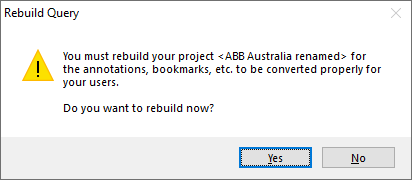
- Rebuild Query (after a project move or rename, it is suggested that you rebuild the project to retain annotations, bookmarks, etc.
- Source Missing, "BuildPlus has detected that it cannot find the following source files required for the build to be successful.", listing files that are not in the expected location
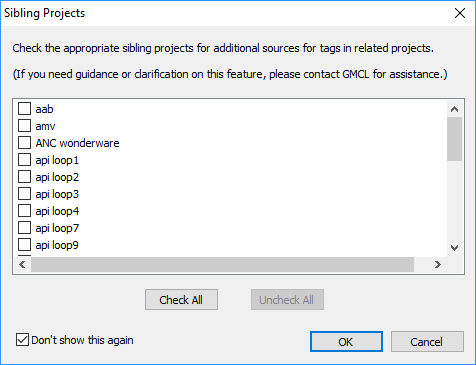
- Sibling Projects (check the boxes to search for additional sources for tags in related projects). Note that if you Cancel out of this dialog the build will stop. For more information see Finding_more_tags_in_Sibling_Projects
- Database Override (BuildPlus will automatically use the exact named database found in console.cfg for graphics association, if the database exists)
- Missing Hyperlink Components: The file(s)... are missing and are required in order to run Hyperlink - Aborting. The build will not be complete unless the missing file(s) are added to Program Files. Contact GMCL for assistance.
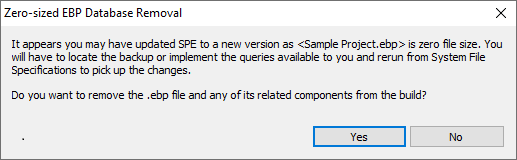
- Zero-sized EBP Database Removal: If you have updated SPE to a new version, choose Yes and rebuild from System File Specification, and select the updated database
- Process_Doc_Files.py Failure: issues were encountered while processing some AC800M DOC/DOCX files, and they will not be included in the build. A new version of DBDOC may try to include these files, or they can be re-included using the BuildPlus Project Option for Excluded Files

Run PPA_Extractor to extract files...
In a new build, PPA_Extractor extracts graphics and submodels files for DBDOC. In a rebuild, it will rerun if any of the following are identified:
- New version of PPA_Extractor
- Data code change
- Missing extracted folder
- Missing 0_*.dmp or *.frg file
- Change in source
A full CAD rebuild will occur...
Decomposer extracts information from Composer databases and CLD files. In a rebuild, it will rerun if any of the following are identified:
- New version of Decomposer.exe
- Changed .ebp file
- Changed .CLD file
- No dbf files present in the DECOMPOSER# folder (this generates "The DECOMPOSER1 directory appears to be missing key components. Forcing a full rerun on the Composer database ...")
- LLPPMM.MHD file is deleted/missing from the DECOMPOSER# subfolders
- LLPPMM.DMP file is deleted/missing from the DECOMPOSER# subfolders
- All .CAD files in a DECOMPOSER# LPM subfolder are deleted
- All .WIR files in a DECOMPOSER# LPM subfolder are deleted
About DR2DT
DR2DT now is part of a service available to reconcile graphics and databases and get a .DT file and .DBF files that are as accurate as possible. For more information, please contact GMCL.
BuildPlus hang while running cscript.exe
When you see this happening, chances are you have some sort of script blocking turned on in your anti-virus software. When your anti-virus software is Norton Anti-Virus (NAV), here are the steps to go through to get your build going:
- Start Windows Explorer and navigate to your DBDOC programs directory - typically this is
C:\Program Files\GMCL\DBDOC\Programs. You may need to go into theDecomposersubfolder found there as well, depending on what script is being executed. Find the problem .VBS file and execute it (double click on it). - NAV will report "possibly malicious script detected" and recommend that you not execute it.
- Choose the option "authorize this script" and continue.
- Repeat this process for any script that you hit. At present, these include
mdbtype.vbs,xls2csv.vbs, anddbspec.vbs.
These steps will overcome Norton's script blocking without opening up your computer to other scripts that might be malicious.
About Hyperlink
Hyperlink is the DBDOC compiler. During the build you will see "Starting Hyperlink Compiler..." appear in the main BuildPlus window, while many messages appear in the sub-process window. If there is a problem during this stage, contact GMCL.
Logging messages from the main BuildPlus window (BuildRoot option)
On the Tools menu, click BuildRoot Options.
When the option to "Log Build Messages" is checked, all messages that appear in the main BuildPlus message window will be logged. The file will be in the LOGS subdirectory of the project directory, and will be called <Project_name>_<Build_date>.LOG.
When the option to "Log Sub-Process Messages" is checked, all messages that appear in BuildPlus's sub-process message window will be logged. The file will be in the LOGS subdirectory of the project directory, and will be called <Project_name>_ProcessMsgs_<Build_date>.LOG.
These files can be helpful in analyzing any difficulties with the build.
Default: on

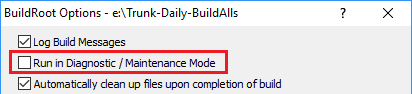
Running the build in Diagnostic/Maintenance Mode (BuildRoot option)
On the Tools menu, click BuildRoot Options.
Diagnostic/maintenance mode is used for debugging. With this option checked, BuildPlus will stop after each step in the build process and ask whether to proceed to the next step. This allows you to stop the build and analyze intermediate files and error logs that may be removed at later stages in the build.
Default: off
See also